Make a Fire !
1. first I started with a blank page.. duh
it doesn't mater what the size is but I used 400 X 400 pixels
2. Ok, we got our blank document now were going to select the fill tool and fill the layer black.
3. Now grab the elliptical marquee tool and make and oval like the image below.
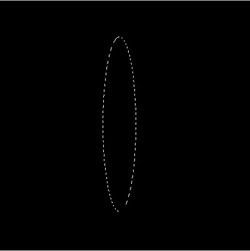
4. Now fill the oval with white. After it is filled click select --> deselect or ctrl + D

5. Here is where it gets rockey if you haven't got the above steps down well your in trouble, anyways select the smuge tool then make shore that the brush size is at 50px and hardness is at 50%. Click and hold your cursor in the black part of the image and with a medium speed sweep across the white oval. Repeat as many times as needed but leave a gap big enought for your brush. you should end up with a image like this
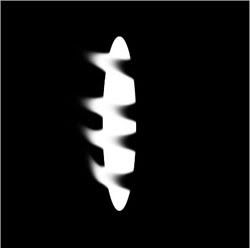
6. Ok I hope your still with me. Now with the smuge tool go over the gaps that we skiped in the same direction, and hopefuly you get a result alot like this
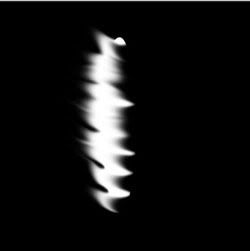
7. step 7 is not any differant than step 5 and step 6. Take the smuge tool and repeat the same thing you did in step 5 and hopefuly you get this
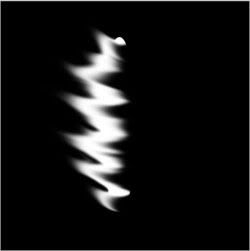
8. from what you have now you can contune the pathern if it don't look right or you can go ahead and color it.
9. now click Layer--> color balance and a window should open up..... now put the below settings in
I WANT YOU TO PLAY AROUND WITH THIS because the settings I have wont be the same setting that you need
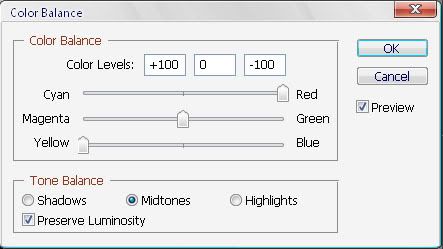
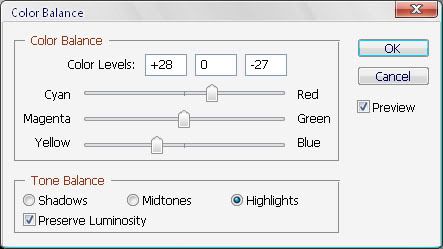
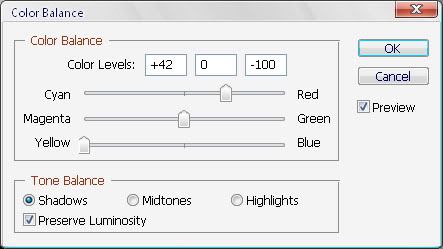
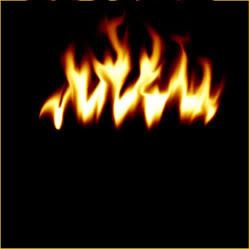
after you played around with the setting you should have this
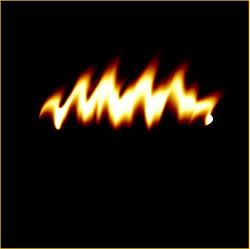
you can also make it any color you want if your looking for a differant look;
this is what I made from the above image... All I did was cange the brush size a little bit to make the fire thinner.
it doesn't mater what the size is but I used 400 X 400 pixels
2. Ok, we got our blank document now were going to select the fill tool and fill the layer black.
3. Now grab the elliptical marquee tool and make and oval like the image below.
4. Now fill the oval with white. After it is filled click select --> deselect or ctrl + D
5. Here is where it gets rockey if you haven't got the above steps down well your in trouble, anyways select the smuge tool then make shore that the brush size is at 50px and hardness is at 50%. Click and hold your cursor in the black part of the image and with a medium speed sweep across the white oval. Repeat as many times as needed but leave a gap big enought for your brush. you should end up with a image like this
6. Ok I hope your still with me. Now with the smuge tool go over the gaps that we skiped in the same direction, and hopefuly you get a result alot like this
7. step 7 is not any differant than step 5 and step 6. Take the smuge tool and repeat the same thing you did in step 5 and hopefuly you get this
8. from what you have now you can contune the pathern if it don't look right or you can go ahead and color it.
9. now click Layer--> color balance and a window should open up..... now put the below settings in
I WANT YOU TO PLAY AROUND WITH THIS because the settings I have wont be the same setting that you need
after you played around with the setting you should have this
you can also make it any color you want if your looking for a differant look;
this is what I made from the above image... All I did was cange the brush size a little bit to make the fire thinner.
